
View Split Images from Excel, PDF, and Multi-image Files
For Excel, PDF, video, and other splittable files, the right detail panel shows extracted image counts and lets you view the child images extracted by the app.
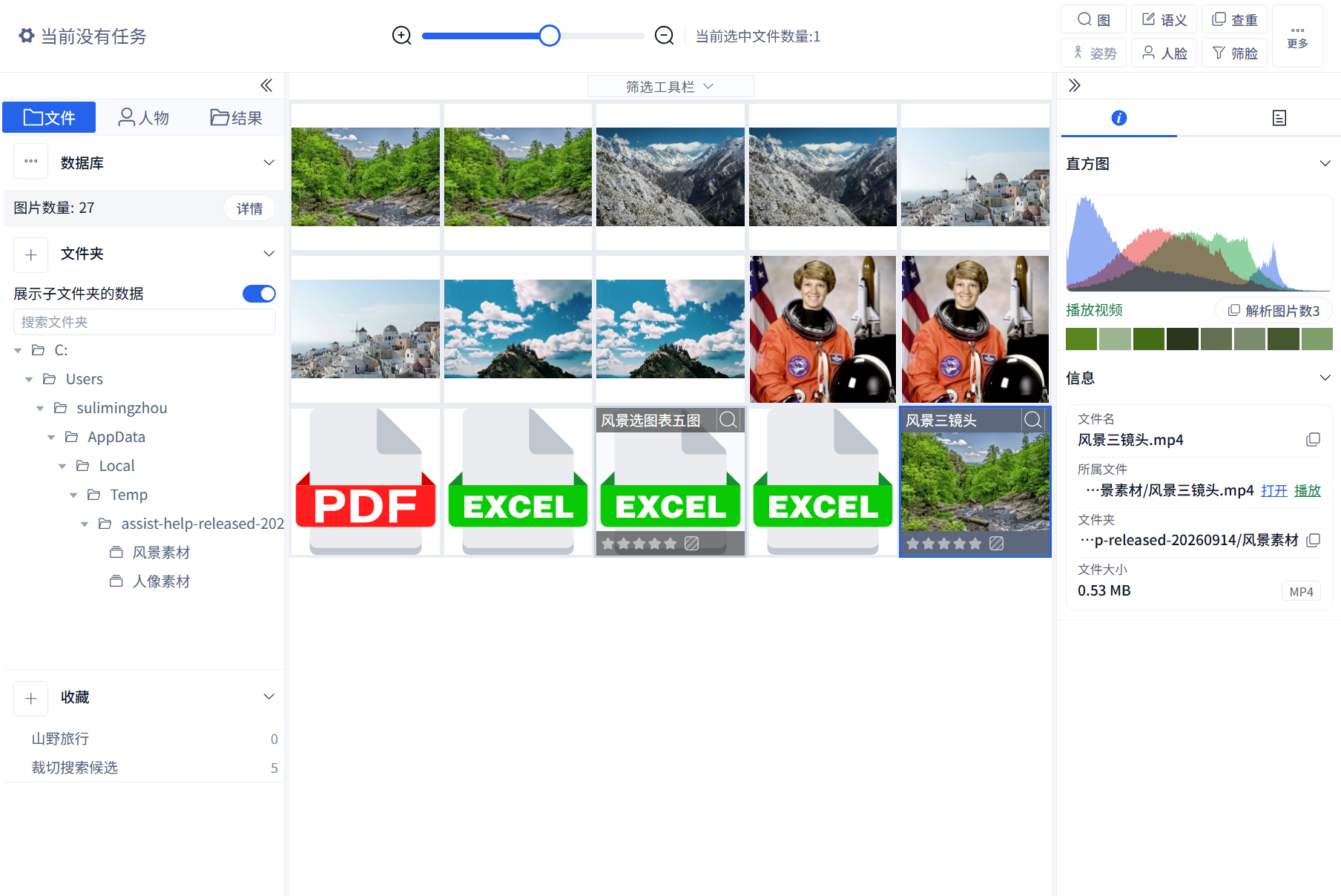
For Excel, PDF, video, and other splittable files, the right detail panel shows extracted image counts and lets you view the child images extracted by the app.
Some files contain multiple images. After parsing, the app can show the extracted child images so they can be searched and reviewed like normal images.
Steps
- Select an Excel, PDF, video, or other splittable file.
- In the right Info panel’s Histogram section, find the parsed-image count button. It appears when the file has multiple parsed images.
- Click the count. Excel opens a sheet drawer; other multi-image files open an image grid.
- Right-click a child image and choose View Image Details or an available image-search action.
Excel Split View
Excel files may contain product images, quotation images, or embedded screenshots. When parsing succeeds, the extracted images appear under the source file.
Tabs at the bottom show worksheet names and image counts. The view keeps nearby row and column text where available, helping you identify the record an image belongs to. Use the filter toolbar’s Split Information search field to search associated text when the parser has linked it to the image.

Successful image extraction does not guarantee associated text. In this two-image example, the drawer shows only Images and File; the source workbook's names, uses, and notes are absent. Open the source workbook to check missing details. Image counts alone cannot establish that all spreadsheet information is available, and adding more pictures or repeating parsing is not a guaranteed remedy.
A compatible five-image workbook can show the linked fields. In the example below, the stream, snowy mountains, seaside town and other pictures each have their own name, notes and use. Check the picture and text row by row after parsing, not just the total image count.

PDF and Other Multi-image Files
PDFs are rendered one image per page, including its text, pictures, and layout. Multiple pictures on one page remain part of that single page image. Videos and other supported multi-image files also open an image grid.


In this example, a two-page landscape PDF was added to an already indexed material folder and processed with Refresh Database → Image Search. Its detail panel shows two parsed images. Opening the grid reveals the matching stream and mountain pages. One PDF can produce multiple searchable images, so file counts and image counts differ.
Video Frame Example
This nine-second video shows a stream, snowy mountains and a seaside town in sequence. Scene-change parsing produced three images, shown by the parsed-image count in the detail panel. Opening it displays the three matching scenes. This example does not guarantee complete scene coverage for every video: brief images, similar scenes and different sampling settings can produce different results. Play the source video to review its full content.

Common Cases
- If no split images appear, confirm the file type is supported and parsing has finished.
- If Excel parsing fails, check the WPS or spreadsheet environment.
- If extracted images are outdated, re-parse the source file.
- A file with zero or one parsed image does not show the multiple-image button; its absence alone is not a parsing failure.
- OCR searches recognized text inside images, while Split Information searches the associated extracted information.