
Use the Client Offline with a Request File and License File
Export an offline request on the disconnected computer, purchase its license on a connected device, then import the license and restart.
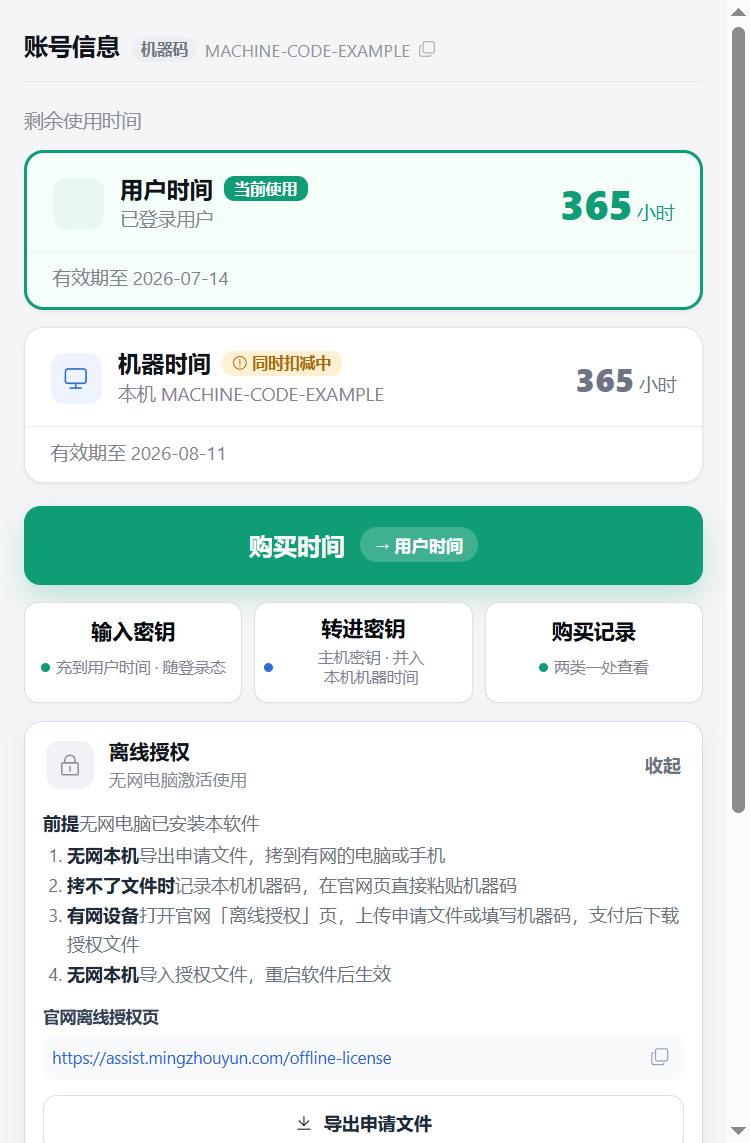
Export an offline request on the disconnected computer, purchase its license on a connected device, then import the license and restart.
If the app is already installed on a computer without Internet access, an offline license can authorize that computer. Export a request, take it to a connected device, purchase and download the license, then bring the license back to the original computer.

The license is tied to the computer identified in the request. It cannot be shared across different machines.
1. Open account information on the offline computer
Choose Account → My Account and expand Offline License. This section provides instructions, the website address, Export Request and Import License.
Prefer a request file if you can transfer it with a USB drive, phone cable or local share. Otherwise, record the machine code shown on the account page and enter it on the website.
2. Export the request
Select Export Request and save the file, normally ending in .assist-request.json. Transfer it to an Internet-connected computer or phone.

The request identifies the target computer. It is not an activation file and cannot be imported as a license.
3. Purchase the offline license
On the connected device, open the official Offline License page at https://assist.mingzhouyun.com/offline-license. Upload the request or enter the offline computer's machine code.

Check the machine code, select a duration, and follow the page's WeChat sign-in and payment steps. Review the machine, duration and sign-in status in the order summary before paying.
4. Download the license
After payment, download the .assist-license file and transfer it back to the original computer. Keep it separate from the request file: the client exports the request; the website issues the license.
5. Import and restart
On the offline computer, open the Offline License section again, select Import License and choose the downloaded .assist-license file. Restart the app when prompted so the authorization takes effect.
6. Confirm the authorized state
Reopen account information. The offline-license section should show its active state and expiry, and Online Use should show No.

If the app still shows the online edition, confirm that it was restarted and that the license belongs to this machine.
Troubleshooting
- Cannot transfer the request: enter the machine code manually on the connected device. The final license file still needs to reach the offline computer.
- Invalid file: select
.assist-license, not.assist-request.json. - Wrong computer: verify the machine code and contact support about the order before purchasing again.
- Expired license: renewal requires a valid new authorization; downloading an expired license again does not extend it.
- Lost the download: sign in with the same WeChat account on the Offline License page and use License Reissue to download an existing license again.
- Return to the standard edition: Restore Standard Edition is available while an offline license is in use. Restart after restoring.