
Filter, Sort, and Search the File List
Use the filter toolbar above the file list to narrow material by file type, rating, color label, size, ratio, duration, capture date, camera metadata, keywords, and sort order.

Use the filter toolbar above the file list to narrow material by file type, rating, color label, size, ratio, duration, capture date, camera metadata, keywords, and sort order.
The file list filter toolbar helps you quickly narrow a large library to the material you need.
Steps
- Select the folder you want to browse in the workspace’s Files tab.
- Open or use the filter toolbar above the file list.
- Set one or more conditions such as type, rating, color label, size, metadata, date, or keyword.
- Adjust sorting if needed.
- Clear filters when you want to return to the full list.
Rating, Color Labels, and Properties
Use the separate star button for ratings and the label button for color labels. Ratings support less than, equal to, and greater than or equal to a selected star count. Labels are red, yellow, green, blue, or purple manual markers.
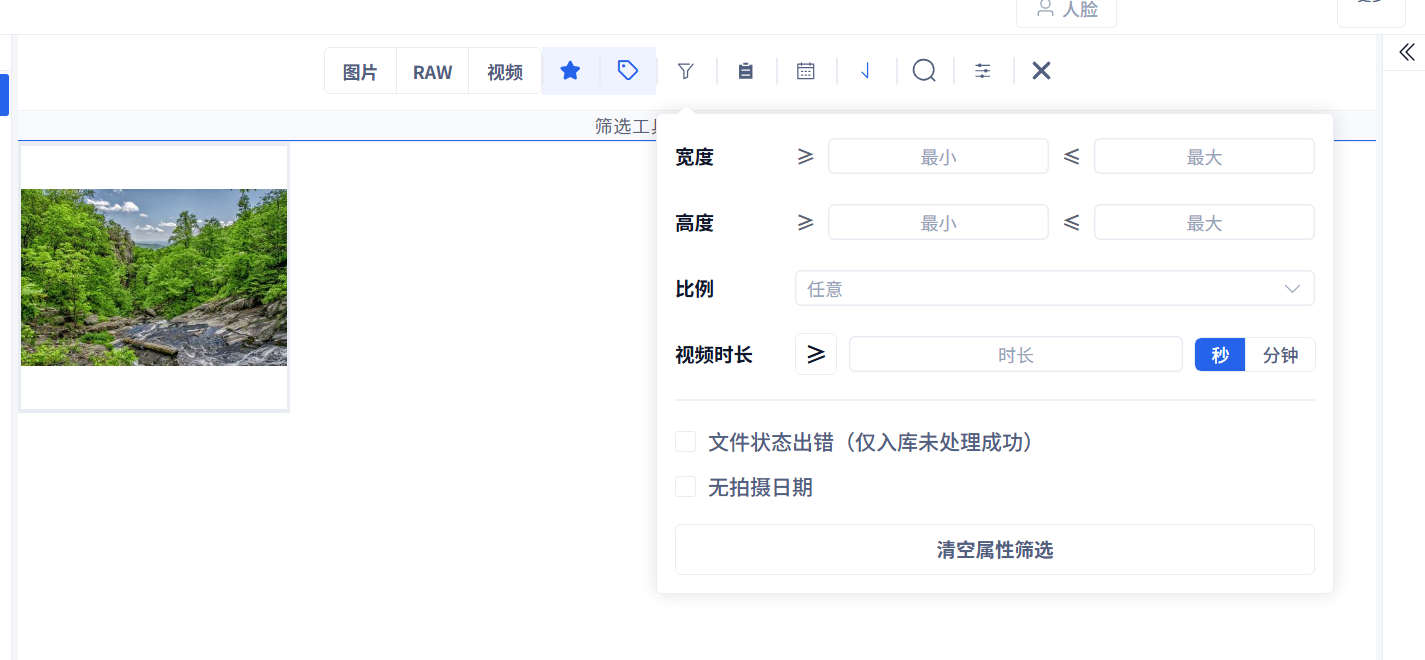
The funnel button opens property filters:
- minimum and maximum width or height;
- aspect ratio, including square, landscape, portrait, and common ratios;
- video duration in seconds or minutes;
- files whose import processing failed;
- files without a capture date.
Clear Property Filters resets these property conditions while keeping ratings, color labels, media types, sort order, and keywords. The toolbar's cross button clears all filters.
Mark and Find an Image
In this example, one forest image is marked with five stars and green. Choosing ≥ 5 stars and green in the two separate toolbar controls leaves that one image and shows two active filters. Color labels represent your own selections; they do not detect the image's palette.
Metadata Filters
Open the metadata filter to narrow files by EXIF data read from the original images.
Available fields include camera, lens, aperture, shutter speed, focal length, 35mm-equivalent focal length, ISO and flash. Use the separate calendar button to filter by capture date.

You can select multiple values in one field and combine fields together. When metadata filters are active, the toolbar shows the enabled state. Hover the metadata button to see the full metadata filter summary.
Clear Metadata Filters resets only these EXIF conditions; it keeps property filters, capture dates, media types, sorting and keywords.
Choosing Search Fields
- Filename: search by file name.
- Path: search by folder or full path.
- Note: search image notes.
- OCR: search recognized text inside images, useful for screenshots, certificates, invoices, and other text-heavy images.
- Split information: search information associated with images extracted from spreadsheets and PDFs.
After typing, the list updates automatically after a short delay.
Sorting and Export
Sort by filename, import time, capture date, rating, width, or height, in ascending or descending order. After filtering, use Operate Filter Results on the filter toolbar and choose Export Files to copy the full filtered set, or Export Filenames for a CSV list. The toolbar shows the current result count.
Common Cases
- If no results appear, clear filters and try broader conditions.
- If OCR search returns nothing, confirm OCR data has been generated.
- If date filters look wrong, check whether the images contain capture-date metadata.
- If metadata filters have no options, the original images may not contain EXIF data, or an older library may need one database repair pass to backfill metadata summaries.
- If the result actions are disabled, check that filters are set, results exist, loading has finished and no background task or export is running.