
Automatic Database Refresh Settings
Set automatic refresh intervals, extra folders and the parsing type for newly detected files.
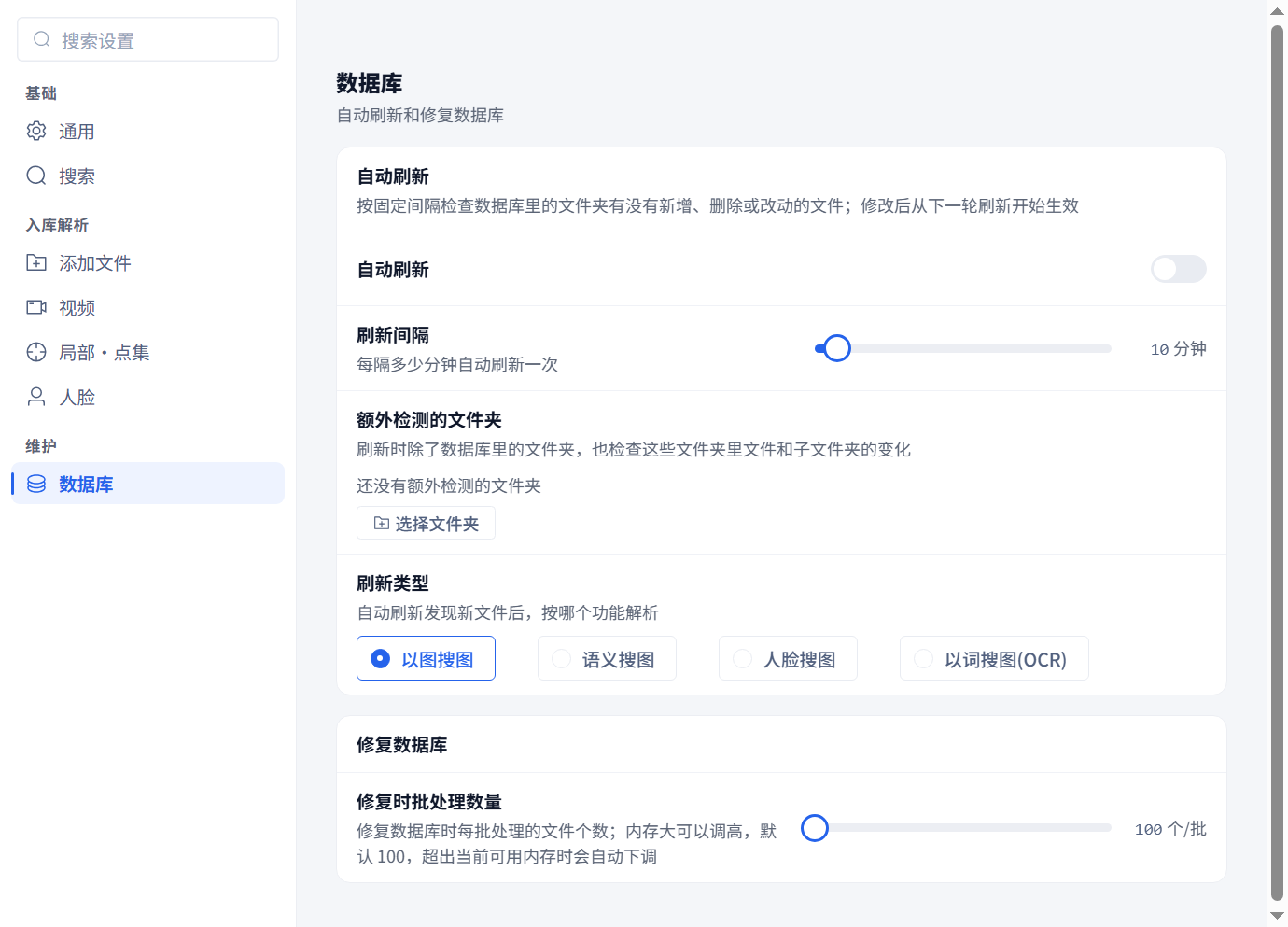
Set automatic refresh intervals, extra folders and the parsing type for newly detected files.
Open Settings → Database → Automatic refresh.
Enable automatic refresh, choose an interval of 1–120 minutes, and optionally add extra folders. Select one parsing type for new files: image, semantic, face or OCR search. This is not a multi-select, so it does not prepare every search capability at once.
Removing an extra-folder entry does not delete files or existing library records. If the folder is already in the library, it may still be refreshed as a library folder; check the workspace folder list when you intend to stop maintaining it.
Changes apply from the next cycle. Keep the host running and its disks or network shares accessible. Recent versions continue with later cycles after temporary network or authorization failures, but expired authorization still needs attention. A shorter interval does not fix an unavailable disk or a parsing error.