
Pose Search with a Reference Image or a Stick Figure
Find similar body positions using a photo or an editable skeleton, then control orientation, framing and search scope.

Find similar body positions using a photo or an editable skeleton, then control orientation, framing and search scope.
Pose search uses body keypoints, orientation and composition to find similar actions. It is useful for event photographs, fashion images, sports, dance and storyboard references where the desired pose matters more than matching the face, clothing or background.
1. Open Pose in the search toolbar
Pose is a dedicated workspace toolbar entry alongside Image, Semantic and Face. The current library needs parsed pose data before this search is available.

Use image search for similar image content, face search for face similarity, semantic search for a written description, and pose search for body structure and action.
2. Search with a reference photo
Choose Upload Image, then select or drag in the reference. Blue points and lines show detected body keypoints. A green box identifies the selected pose. In a photo with several people, select the person you want to use.
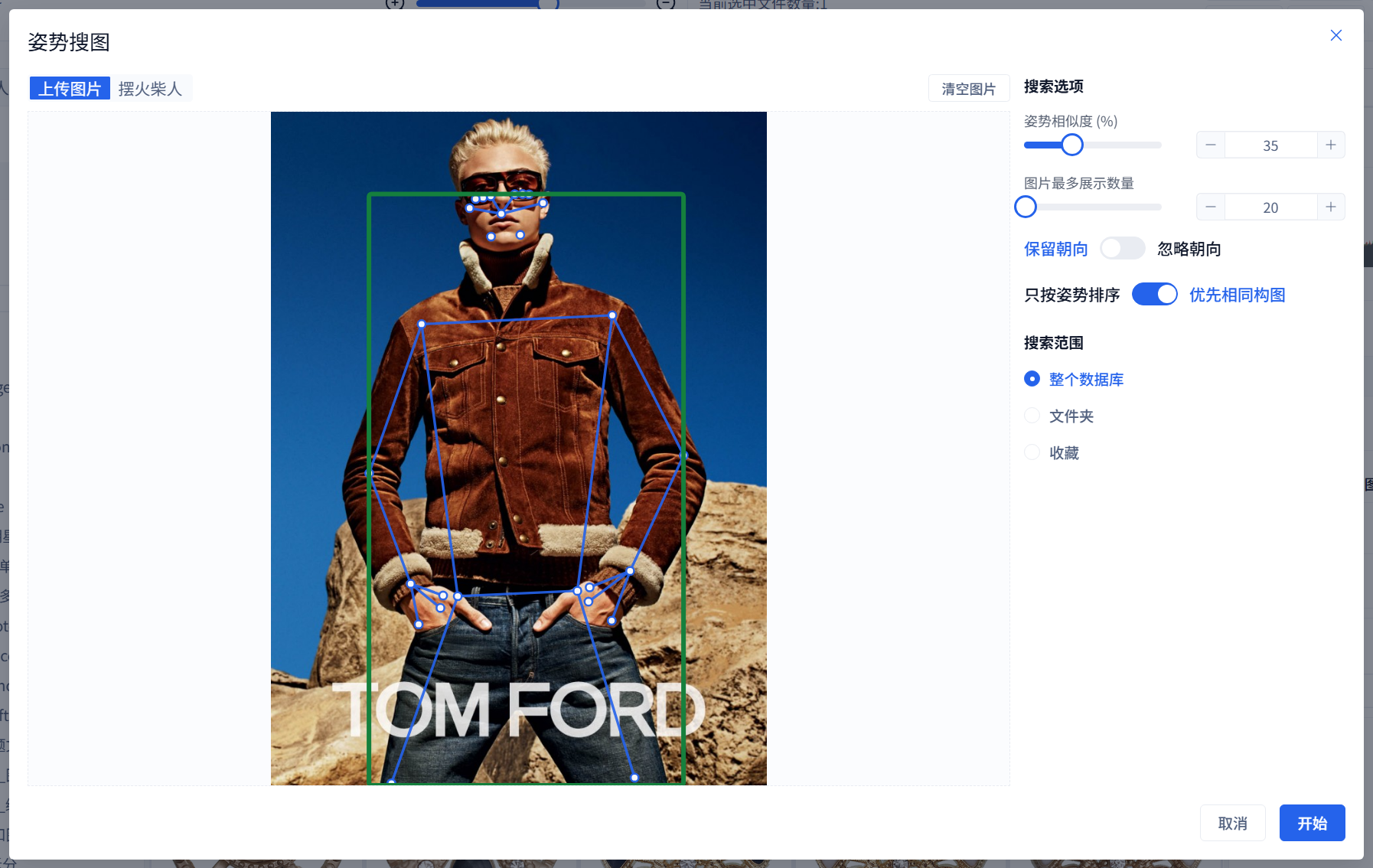
Check that the skeleton follows the intended person's head, shoulders, arms, hips, knees and ankles. If it follows the background or another person, or important joints are obscured, use a clearer reference. Then set the threshold, orientation, composition and scope before starting.
3. Search without a photo
Switch to the stick-figure editor and drag joints into the desired pose. Use framing to control the person's size in the image and orientation to express front, back or side views.

This works for requests such as a centered full-body figure, walking sideways or standing front-on with relaxed arms. Start with an approximate skeleton and refine it after reviewing results.
4. Set search options
- A higher pose-similarity threshold generally returns fewer, closer candidates.
- The result limit controls how many images are returned.
- Preserve orientation when direction matters; ignore it to broaden matching.
- Prefer similar composition when framing and the person's share of the image matter; pose-only ordering relaxes that preference.
- Limit the scope to the database, selected folders or a collection.
Start with a broader threshold, then narrow the threshold or scope after seeing useful candidates.
5. Review results
Results show candidate images and pose similarity. Open large previews to check the action, completeness of the body, clothing, image quality and suitability for the project.

Similarity is a ranking clue, not a guarantee that an image meets the brief. Check image rights and source before delivery as you would for other material.
6. Put the results to work
Use pose search to shortlist event moments, consistent model poses, dance and sports actions or storyboard references. Collections, ratings, color labels and export can turn the shortlist into a project selection.
7. Preparation and limits
If Pose is unavailable, check the database's pose-parsing data and enable or complete the corresponding parsing during import or repair. Crowds, occlusion, low resolution and partly visible bodies can weaken detection.
For too many loose matches, raise the threshold, preserve orientation or reduce scope. For too few, lower the threshold or ignore orientation. Main file-list ratings and color-label filters do not directly filter an open pose-results drawer. When identity matters, use face search and manual review to create a candidate collection, then choose that collection as the scope of a pose search.