
Search Product Images in Lighting Quotation Spreadsheets
Import embedded Excel images, search for matching lights, inspect worksheet and quotation details, and export a verified shortlist.

Import embedded Excel images, search for matching lights, inspect worksheet and quotation details, and export a verified shortlist.
Use a customer's product photo to find similar lights embedded in local quotation workbooks, then review the associated model, dimensions, material and price. Image similarity produces candidates; confirm the actual quotation in the original workbook before making a purchasing or pricing decision.
1. Prepare the spreadsheet environment
Follow the client's WPS prompt when the spreadsheet operation requires it. Keep the quotation files locally accessible and start with a small representative workbook to check that embedded images and their associated information are extracted correctly.

2. Import the quotation folders
Add the supplier or project folder to the database. Enable Image Search and at least Global. Select the folder, choose whether to include subfolders, and click Start Adding. Add other strategies only when needed: Local · Keypoints for cropped details and Global · Color for palettes.

The screenshot shows the feature choices before a folder is selected, so Start Adding is disabled. Choose your own source folder before starting.
3. Wait for parsing to finish
Workbooks can take longer than ordinary images because their embedded pictures and associated cells must be extracted. Open the task indicator to review progress. Early visible images do not mean the entire workbook is ready for searching or quotation review.

4. Inspect the extracted images
Select a workbook in the file list. In its right-hand details, open Parsed Image Count when multiple pictures were extracted. A single extracted picture has no such button; absence alone does not establish a parsing failure.

Switch worksheet tabs to inspect the products and nearby model, dimensions, finish, material, price, packaging and note fields.
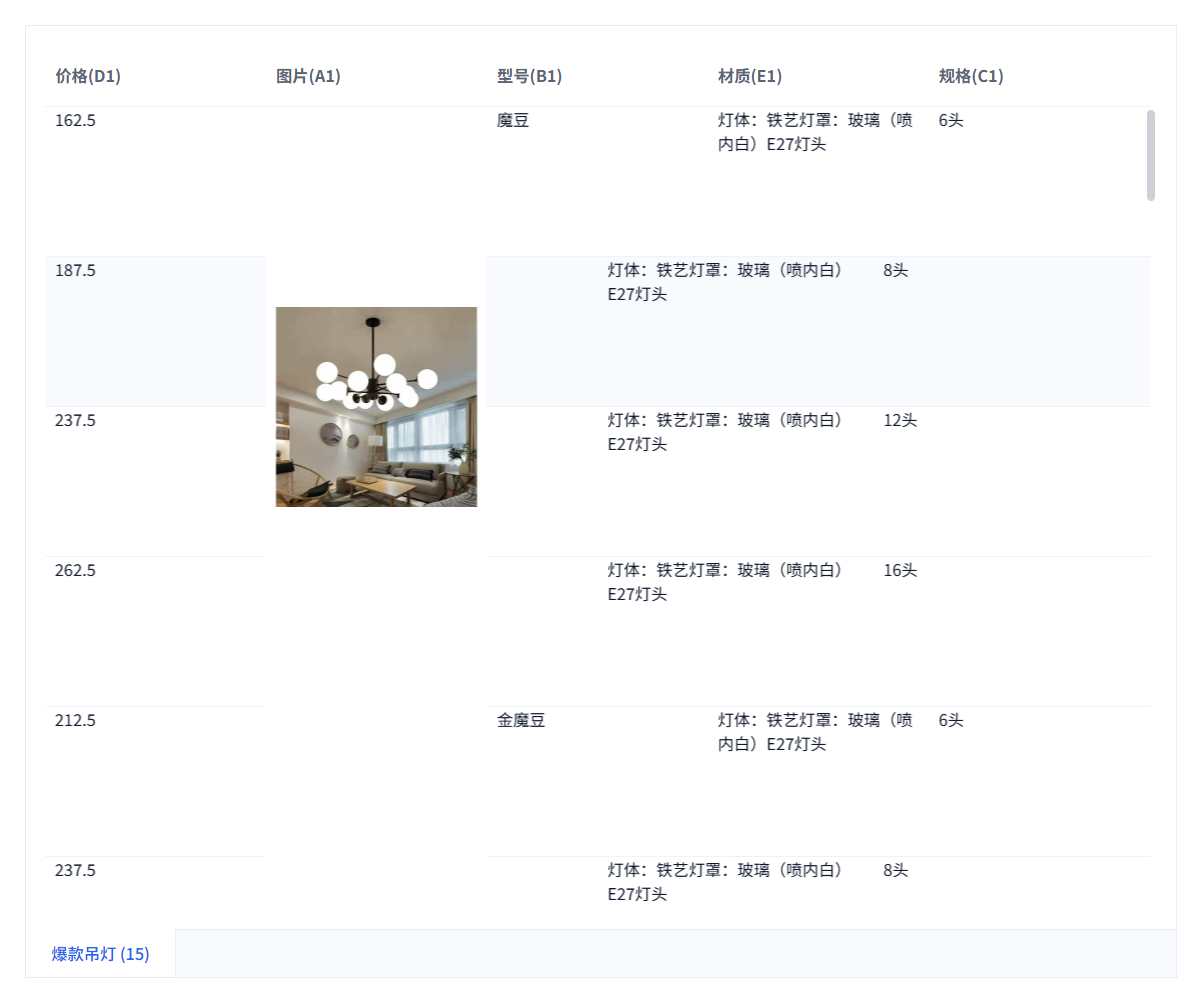
This view is for inspecting the extraction, not editing Excel. The original workbook remains in its source folder.
If the drawer shows only pictures and source files, the associated fields are incomplete. Open the original quotation to verify missing model, price, or specification values; do not treat them as zero or assume the source is blank. Image extraction does not guarantee nearby text association, and adding pictures or repeating parsing is not a guaranteed remedy.
5. Search with the customer's reference
Open Image in the top toolbar, upload or drag the reference, choose a strategy and restrict the search to the relevant quotation directory.

- Complete product photo: start with Global.
- Lampshade, arm, ornament or texture detail: try Local · Keypoints.
- A palette such as black and gold or brass: try Global · Color.
- Chat screenshot with borders or unrelated content: crop to the product first.
6. Switch results to List for quotation details
In an ordinary image-search results drawer, switch from Grid to List to see the source file, worksheet, cell location and associated spreadsheet information alongside each product image.
Global · Color results do not offer this List switch. Review model numbers, specifications, finishes and prices in their original workbook context. The image's menu also provides detail viewing and, for supported Windows spreadsheet environments, Show in Spreadsheet to locate it in the original workbook.
7. Search model numbers and other text
Expand the file-list filter toolbar and select Split Information, such as associated spreadsheet information. Enter a model, material, series, price-field name or other saved text.
This searches the information saved when the workbook was parsed. It can narrow the list before visual search or inspection of the extracted images.
8. Highlight useful field names
In 3.13.31, open Settings → General → Spreadsheet Preview. Enter frequently reviewed terms such as model, specifications or price, then press Space to create each keyword tag.

In the image list's table view, a header whose name contains a keyword turns red. Matching is case-sensitive and applies to the whole header, not ordinary cell contents. This changes the display only and does not require another import.
9. Export a verified selection
In the left Results panel, open the search entry's Actions → Export menu. This exports the whole history result regardless of drawer selection. Use an explicitly selected-image drawer action for a subset. Names export creates CSV with optional full paths; Images with Paths adds a TXT per image; spreadsheet export creates XLSX. Extracted images are not a complete quotation workbook; locate the source file when delivering the workbook itself.

Recommended workflow
Organize by supplier, series or year; test one workbook; complete parsing; search the customer image; review candidates in List view; confirm the source quotation; then save a collection or export.
Troubleshooting
- No Parsed Image Count: there may be only one extracted image, or parsing may be unfinished or unsuccessful. Check task results and the spreadsheet environment.
- Too few extracted pictures: verify that images are actually embedded; external links, encryption and unusual workbook structures may not parse as expected.
- Image Search unavailable: complete the required search-strategy parsing.
- No spreadsheet details: the result may be an ordinary image, or the workbook information was not extracted successfully.
- No useful match: improve the reference, widen scope or adjust the result limit and applicable threshold.
- Cropped detail does not match: confirm Local · Keypoints data exists for that directory. For existing images without it, enable the strategy and reprocess the files; keypoint index repair does not first-extract features. Back up first, test a small set, then check task success and refreshed database statistics.
- Show in Spreadsheet unavailable: it requires an extracted Excel image and a supported spreadsheet environment; it is not an action for ordinary image files.
- Large workbook is slow: review task progress and process supplier or project folders in manageable batches.