
Complete Image Search Guide to Global, Subject, Color and Local Matching
Prepare a library, choose and edit a reference, select the right strategy, review results, and organize or export single and batch searches.

Prepare a library, choose and edit a reference, select the right strategy, review results, and organize or export single and batch searches.
The four strategies answer different questions: overall resemblance, a similar subject, a matching palette or a recognizable local detail. Prepare the relevant library data, supply a reference, choose scope and result limits, then review the candidates before collecting or exporting them.
1. Build searchable image data
Image search uses the current database, not every image on every disk. Open Files and use the plus beside Folders to add a source directory.

Enable Image Search and select at least Global. Add Subject, Color or Local · Keypoints when needed. Decide whether to include subfolders, click Start Adding and wait for the task.

The screenshot shows the feature choices before a folder is selected, so Start Adding is disabled. Choose your own source folder before starting.
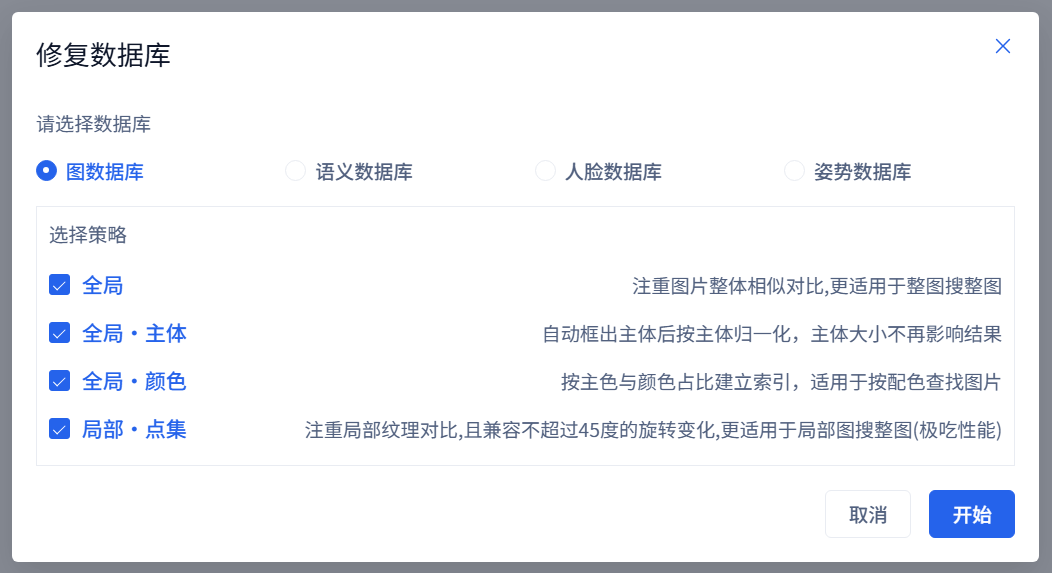
Each strategy adds processing and storage cost. Local-keypoint parsing can be particularly demanding, so test one project folder first. Check task results and refreshed database statistics when a strategy is unavailable. Repair Database can check existing indexes, but keypoint repair does not first-extract missing keypoints. For existing images without them, back up the database, enable Local · Keypoints under Settings → Add Files while retaining other needed parsing options, then right-click a few files and choose Reparse File. Reprocessing may affect existing collection associations and other image records. Confirm success, refresh database details and reopen Image Search before expanding the scope.

2. Decide what “similar” means
A full reference may be used to find an original, a higher-resolution copy, a similar product or a related composition. A palette or a small packaging detail needs a different strategy. Search narrows the candidates; it does not establish that two products are identical or that an image is ready for delivery.
3. Supply a reference
Open Image in the top toolbar and choose or drag in a file. If the button is unavailable, check whether image-search data exists in the current library.


You can also use Screenshot Paste, drag an image into the workspace, paste copied image content with Ctrl+V, or use an existing library image's similar-search action. Workspace drag and paste both follow Settings → Search → Ctrl+V Paste Image; face mode automatically uses the first detected face. On Mac use Command+V; use the complete Image dialog when you need to inspect strategy, crop and scope. A copied URL or path is not necessarily clipboard image content.
4. Clean up the reference
Crop away chat controls, borders, unrelated products and excessive blank space. Keep enough of the subject's outline and distinctive details; an extremely small or blurred crop can be less useful.

Remove Background is useful for a clear subject, but can lose hair, transparent parts and small edges. Restore the original or crop only when that happens. Clear the reference before switching to a new image so that earlier image or color selections are not reused accidentally.
5. Choose a strategy

- Global: similar complete images, objects, scenes or compositions.
- Global · Subject: concentrate on the subject when its surrounding scene differs.
- Global · Color: similar selected colors and palettes, regardless of object identity.
- Local · Keypoints: distinctive texture or structure from a crop that may occur in a complete image.
If uncertain, start with Global and compare another strategy only when it matches the task.
6. Global matching
Keep the main subject and composition, remove unrelated borders, select Global and try 20–100 candidates. Review the first results before increasing the limit.
The recorded example returns the same fashion reference first at 100.00%. A high score is a similarity clue, not proof of the same product, file or usable license. Compressed, cropped, watermarked and alternate-angle images still require inspection.
7. Subject matching
Global · Subject emphasizes the subject and reduces differences caused by its size and surrounding background.

Try it for a product shown against different backdrops. It is less appropriate when the room, landscape or background itself is the target, or when the subject is tiny, obscured or difficult to separate.
Query background removal is a manual action; choosing the strategy does not automatically remove the reference background. If library parsing used the Remove Background sub-option, apply that action to the query when appropriate. If important details are lost, use the original or a crop with Global instead.
8. Color matching
Global · Color identifies representative colors. Blue-bordered swatches participate in the search; select or deselect swatches and use Recognize Again after changing the reference.

For a colored garment, exclude unrelated white backdrop or dark text. For a visual palette, retain a few representative main and accent colors. Crop first if the reference is cluttered. Similar colors can occur on entirely different objects, and lighting, white balance and filters affect the result.
9. Local-keypoint matching
Prepare Local · Keypoints data, crop to a distinctive region, select that strategy and initially keep the minimum similarity at 0 to avoid excluding candidates too early.

Keep texture, edges or structural details rather than a flat patch of color. Repeated fabric, wood grain and packaging motifs can produce several plausible candidates. Compare orientation, edges and surrounding detail in the full image. See “Find a Complete Image from a Crop or Small Detail” for a complete crop-to-original demonstration.
10. Limit the search scope
Use the whole database when the target's location is unknown, selected folders for a customer or project, and a collection for a previously curated shortlist.

11. Set result limits and local thresholds
The result limit is a maximum returned count, not a count of every potential match. Try 20–50 for a quick check or 100–200 when uncertain. Reduce the scope before requesting very large lists.
Minimum Image Similarity is shown for Local · Keypoints. Start at 0, then raise it if unrelated candidates dominate. Change one constraint at a time so you can tell what excluded a desired result.
12. Review results
Results are ranked by similarity. Use Grid for a visual scan; ordinary image-search results also offer List for file information, but color results do not. Inspect the first 5–10 images, then open promising candidates and compare details, resolution, filename, path and source. A correct target may appear below the first result after compression, rotation, cropping or watermarking.
13. Return through search history
The left Results tab stores image-search entries with their reference, result count and actions. Select an entry to reopen it. Clearing history removes records, not original images or their library membership. Save important candidates in collections or exports rather than relying on temporary history.
14. Collect or export the candidates
Use a history entry's Actions menu to create a collection or add its results to an existing collection. This acts on the whole history result regardless of drawer selection, and does not move source files. Use an explicitly selected-image drawer action for a subset.
Export options include images, image names, renamed images, images with paths and spreadsheet output. Names export creates CSV with optional full paths; Images with Paths adds a TXT per image; renamed export uses path components rather than sequential numbers; spreadsheet output creates XLSX. Export does not move source files. Extracted images are not the whole source workbook, PDF, or video. Check the task indicator for large exports, source accessibility and destination capacity.
15. Use Batch Search for multiple references
Open Batch Search, add references or folders, choose Image Search, select a strategy, set 10–50 results per reference and choose the database or folder scope; there is no collection scope. Reference inputs are not automatically indexed. Image thresholds appear only for Local · Keypoints or Global · Color; face mode has its face threshold.


Each row pairs a reference with its candidates and scores. View More opens already-returned candidates and does not search again. Export Results exports result images, not references, a table, or a path list.
Check whether an empty row is waiting, processing, completed without matches, or failed. Batch export saves rows with results into numbered folders and skips empty rows, so numbers may differ from the original reference-row numbers. Verify the contents and success/failure counts before delivery.

Try 5–10 references with a modest limit first. Version 3.13.31 preloads the required indexes and models on entry; allow that preparation to complete before judging the first query's performance.
16. Match the strategy to the work
For products and similar photographs, start with Global. For a product against different backdrops, compare Subject. For clothing, interiors or packaging palettes, use Color. For a cover corner, illustration or design fragment, use Local · Keypoints. For many references, use Batch Search after validating the strategy on a small sample.
17. Troubleshoot systematically
- Unavailable strategy: check task results and refreshed statistics. Import with the required strategy; existing images without keypoints need reprocessing after enabling Local · Keypoints, since index repair does not first-extract them.
- Missing target: confirm the library, parsing status and scope. If files moved or changed, refresh the relevant folders. Increase the limit and relax the local threshold where applicable.
- Background dominates: crop to the subject or compare Subject; retain Global when the scene is the target.
- Right color, wrong object: color matching is working as a palette search; try Global for object resemblance.
- Repetitive local matches: use a larger, more distinctive crop and a relevant folder, then adjust the threshold.
- Background removal worsens results: return to the original or crop without removing the background.
- Slow search: narrow scope, reduce the result limit and use keypoints only when local detail is relevant.

Compare two candidates directly
From 3.13.31, Tools → Image Similarity Compare calculates the four strategy scores for two images side by side. A two-image keypoint score is not equivalent to a whole-library ranking. Use Settings → Local · Keypoints → Debug to inspect feature distribution; see the dedicated comparison and keypoint-tuning guides for their workflows.