
Filter Portraits by Face Count, Age, Smile, Glasses and Face Size
Find candidate portraits without a reference face using parsed face attributes, search scope and result limits.
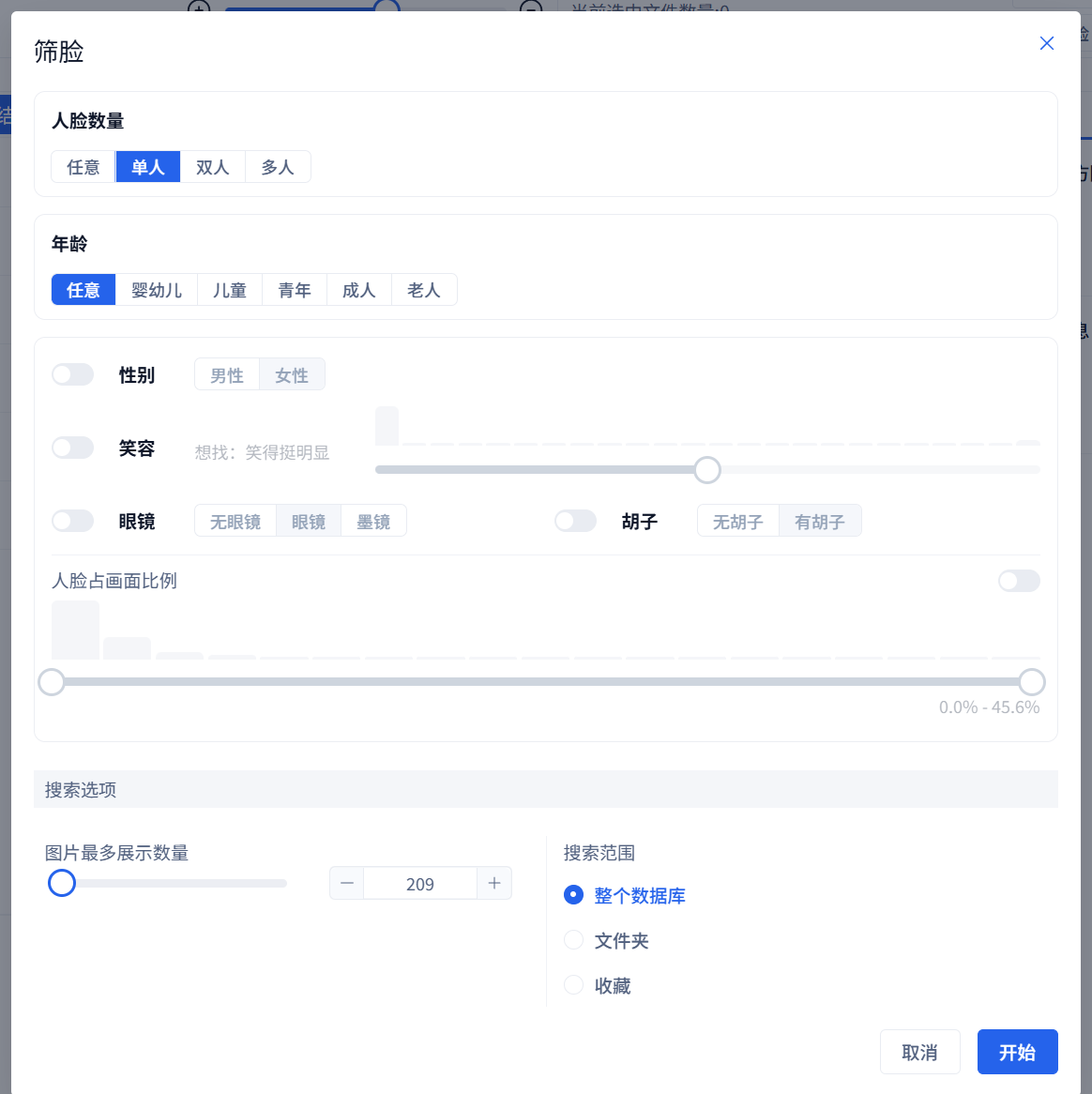
Find candidate portraits without a reference face using parsed face attributes, search scope and result limits.
Face Filter searches existing face attributes without requiring a reference photo. Use it for criteria such as a single face, a group, a visible smile, glasses or a close-up. It does not establish whether two faces are the same person; use Face Search with a reference for that kind of lookup.
1. Prepare face data
The library needs face detections, boxes and attribute data. For an older library that has faces but lacks attributes, run Repair Database and select the face database. The repair fills in attributes using existing face boxes; you do not need to select the source folders again.
2. Open Face Filter
Select Face Filter in the workspace toolbar. The upper part of the dialog contains face conditions; the lower part controls the result limit and search scope.
If the entry is unavailable, check that face-containing images have been imported and that the parsing task has completed.
3. Select face count and basic attributes
Choose any number, one face, two faces or multiple faces. Multiple means at least three detected faces; missed detections can exclude a real group photo. Any still requires face records and is not a search for images with no faces.
Age groups are model estimates for preliminary sorting, not exact ages. Gender, glasses and beard conditions only participate when their switches are enabled and values selected. Enabled attribute conditions must match the same detected face, not every person in the photograph. Multiple Faces + Glasses means a group image with a matching face, not that everyone wears glasses. Review the actual images before relying on an attribute label.
4. Adjust smile intensity
The smile slider expresses a range from no smile through a slight or clear smile to a broad smile. The histogram uses data from the current search scope. Clicking a bar enables the smile condition and selects that region of the slider.
The histogram describes the selected database/folder/collection scope without applying other attribute conditions. Its counts are not final hit counts. The smile slider selects a score interval near its value, not every score above that percentage.
5. Filter by the face's share of the image
This is the area of the face box divided by the image area. A larger share generally indicates a face close-up; a smaller share often occurs in wider scenes or group photographs.
Enable the condition and drag the range slider, or select a histogram interval. Increase the minimum to exclude faces that are too small to inspect. This measures a face box, not the whole body or the entire subject.
6. Set scope and result limit
Search the whole database, selected project folders or a collection. Begin with one or two broad conditions, confirm that useful results exist, then add more constraints. Increasing the result limit cannot compensate for conditions that exclude the desired images.
7. Review results and history
Start the search to open the Face Filter results drawer. Results include matching face information, and thumbnails prioritize the matched face for review.
The search is saved under Face Search Results in the left-hand history, with a summary of its conditions. Select that history entry to reopen the results.

Practical uses and troubleshooting
Use face count for portrait or event shortlists, face size for profile-photo candidates, and smile or glasses conditions to narrow a portrait selection. Combine the results with ratings, collections and export.
- No results: remove conditions and reintroduce them one at a time.
- Too few: widen the scope and attribute ranges, then review the result limit.
- Incorrect attributes: inspect full images; classifications are only an aid.
- No attributes in an old library: complete face-database repair and retry.
- Looking for a particular person: use Face Search or the People panel.