
Choose a New Database Location When the Old Path Fails
If the original database folder was moved, deleted, disconnected, or is otherwise unavailable, follow the prompt to choose a valid database storage location again.
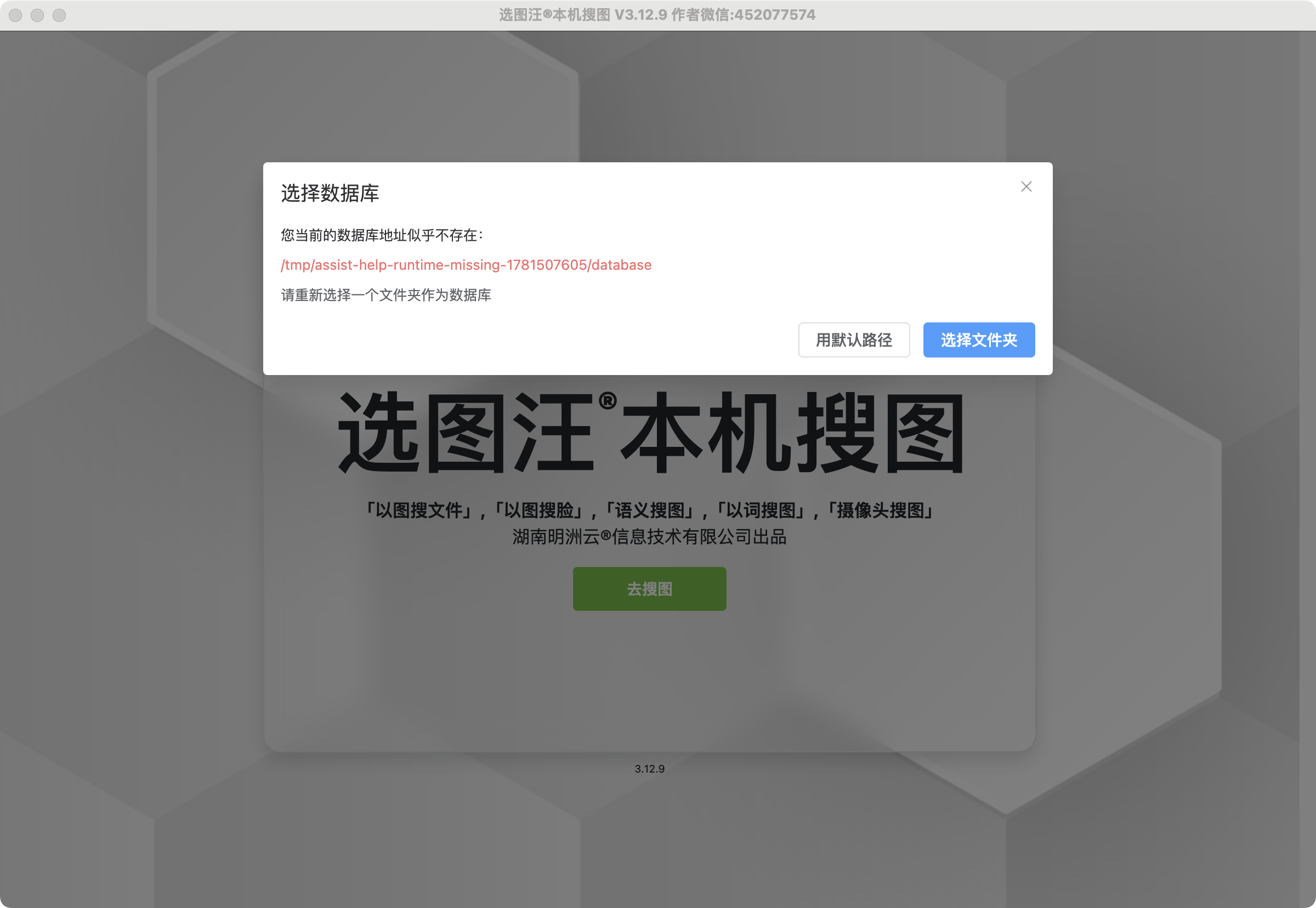
If the original database folder was moved, deleted, disconnected, or is otherwise unavailable, follow the prompt to choose a valid database storage location again.
The database location stores the app's database.db file and related data. If this location becomes unavailable, the app cannot continue loading the image library normally and will ask you to choose a new folder.
When This Prompt Appears
You may see the prompt when:
- the original database folder was deleted or moved;
- the drive containing the database is not connected;
- the configured path points to a folder that no longer exists;
- the app cannot create or read the database file in that location.
If the database is on an external drive, reconnect it and try Go Search again before choosing a new location. A temporarily unavailable drive does not mean the old database has been lost.
How to Choose
The prompt offers Use Default Path for starting with the default location, or Choose Folder for selecting where the database should be stored. Use the default only when you intend to use that database or start again, rather than recover a moved one.
- Read the prompt on the home page.
- Click the button to choose a database folder.
- Select or create the parent folder in which the app should place its
databasefolder. Do not select thedatabasefolder itself. - Confirm the parent folder and let the app initialize or reconnect the database path.
If you are setting up a fresh library, choose a stable local disk path with enough free space.
Important Notes
- Keep source images, workbooks, PDFs and videos in ordinary material folders. Add them from the workspace; do not place them directly inside the database folder.
- Do not choose a temporary folder, recycle bin location, or folder that may be cleaned automatically.
- If you moved an existing database intentionally, use File → Database → Load Database and select the existing database directory that contains
database.db. - If the old database file is damaged, use the database repair guide instead of repeatedly changing paths.
- If usable recent databases are listed, verify the path and click Load directly. This does not use the parent-folder chooser.
- The current startup chooser rejects Chinese characters in the path. If prompted, use a stable directory without Chinese characters.