
Daily Material Library Maintenance: Refresh, Rebuild, Back Up, and Migrate the Database
A maintenance workflow covering database status checks, refresh after file changes, index rebuilds when search is abnormal, task progress, backup or migration, and repair for damaged database.db files.

A maintenance workflow covering database status checks, refresh after file changes, index rebuilds when search is abnormal, task progress, backup or migration, and repair for damaged database.db files.
Large material libraries need regular maintenance. Use the right action for each situation so you avoid unnecessary full rebuilds.
1. Check Database Status First
Open database statistics and check file counts, image counts, pose counts, other feature counts, and disk usage. This tells you whether data exists and whether search features have been generated.
Open Database → Details beside the image count. Wait for any loading indicator to finish before judging the counts. File, image, and feature records use different units and need not have equal counts. Missing or failed statistics are not zero. Check task errors and the required search capability.

2. Use Refresh When Folder Content Changes
If files were added, removed, renamed, or replaced in indexed folders, refresh the database. Enable file-change detection when files may have been replaced without changing names.
Choose Refresh Database from the database actions and select the needed scope and options. Preparing a new capability for existing images is a separate step; keypoint index repair cannot replace first-time keypoint extraction.

3. Use Rebuild When Search Is Abnormal
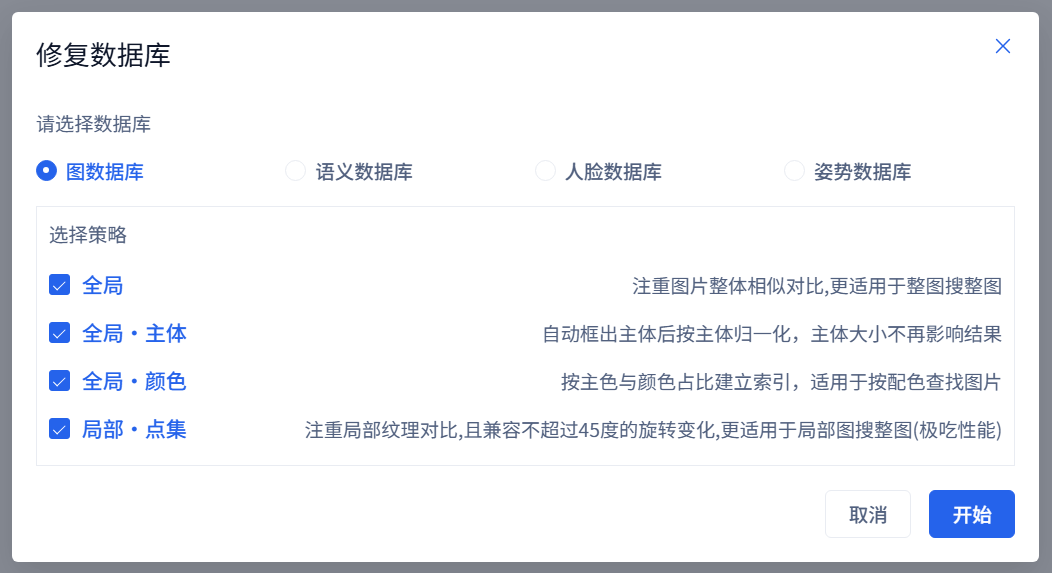
Check the reference, strategy, scope, and parsing status first. Repair can check existing data and indexes, but its scope differs by strategy. Existing images need reprocessing after enabling Local · Keypoints to first-extract features or apply new extraction parameters; keypoint repair only aligns existing features and indexes. Back up important libraries and test a few files first, since reprocessing may affect collection associations and other image records. Unequal counts or poor results alone do not prove corruption.
Use Repair Database from the database actions. This repairs search data; Repair Database File in the Tools menu is a separate recovery operation. Large-library repairs take time and need adequate free space.
4. Watch Progress While Tasks Run
Indexing, face recognition, pose extraction, OCR, and rebuild tasks can take time. Watch the task progress area and wait for completion before checking results.
Click the top progress area to open Background Tasks. Closing this window does not stop a task. Where cancellation is supported, use its cancel button; processing may finish the current batch before stopping. Wait for the task to confirm it has stopped. Cancellation does not roll back completed work. Check any task error before retrying.
5. Back Up or Migrate the Database Regularly
The database stores indexing records, notes, labels, collections, and search data. Back it up before large maintenance, migration, or risky cleanup.
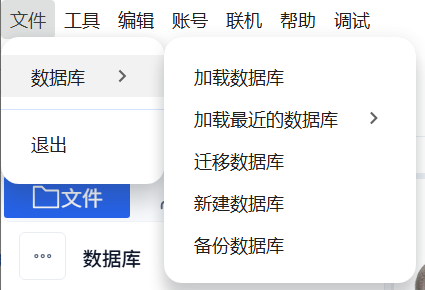
Choose File → Database: Back Up keeps a copy; Migrate copies and switches location; New starts a fresh database; Load opens an existing one. New, Migrate, and Back Up select a parent folder and use its database child; Load selects the folder directly containing database.db. Open actual source files after migration. Back up original material separately, and keep source paths accessible after migration. Do not manually delete database.db, thumbnail folders, or indexes to free space.
6. Repair database.db Only When It Is Damaged
Failure to enter the app or open a database can also be caused by service, path, or permission problems. Check the error and logs; use file repair only after confirming corruption. Repair is for damaged database files, not normal search refresh.
Preserve a copy first, then choose Tools → Repair Database File, select the damaged database.db, and wait for the outcome. An inaccessible source folder is not evidence that the database file is corrupt.
How to Choose the Right Action
- New folder: add folder.
- Existing folder changed: refresh.
- Search strategy missing or abnormal: rebuild.
- Database file damaged: repair.
- Moving to another disk or computer: back up and migrate first, verify the source paths; refresh does not automatically locate arbitrarily moved originals.
Common Cases
- If results are missing after copying files in, refresh the folder.
- If image search is unavailable, rebuild image strategy data.
- If the database grows after cleanup, shrink it after removing unwanted records.
Check the named drive
A full system, database or export drive can cause an operation to fail. Read the path in the warning and check that drive. Do not delete database.db or unfamiliar index files. See “Disk Space Warnings: Which Drive Needs Space?”.