
Can an AI assistant search the images on my computer?
Assist 3.14 connects to WorkBuddy: find local pictures with one sentence.
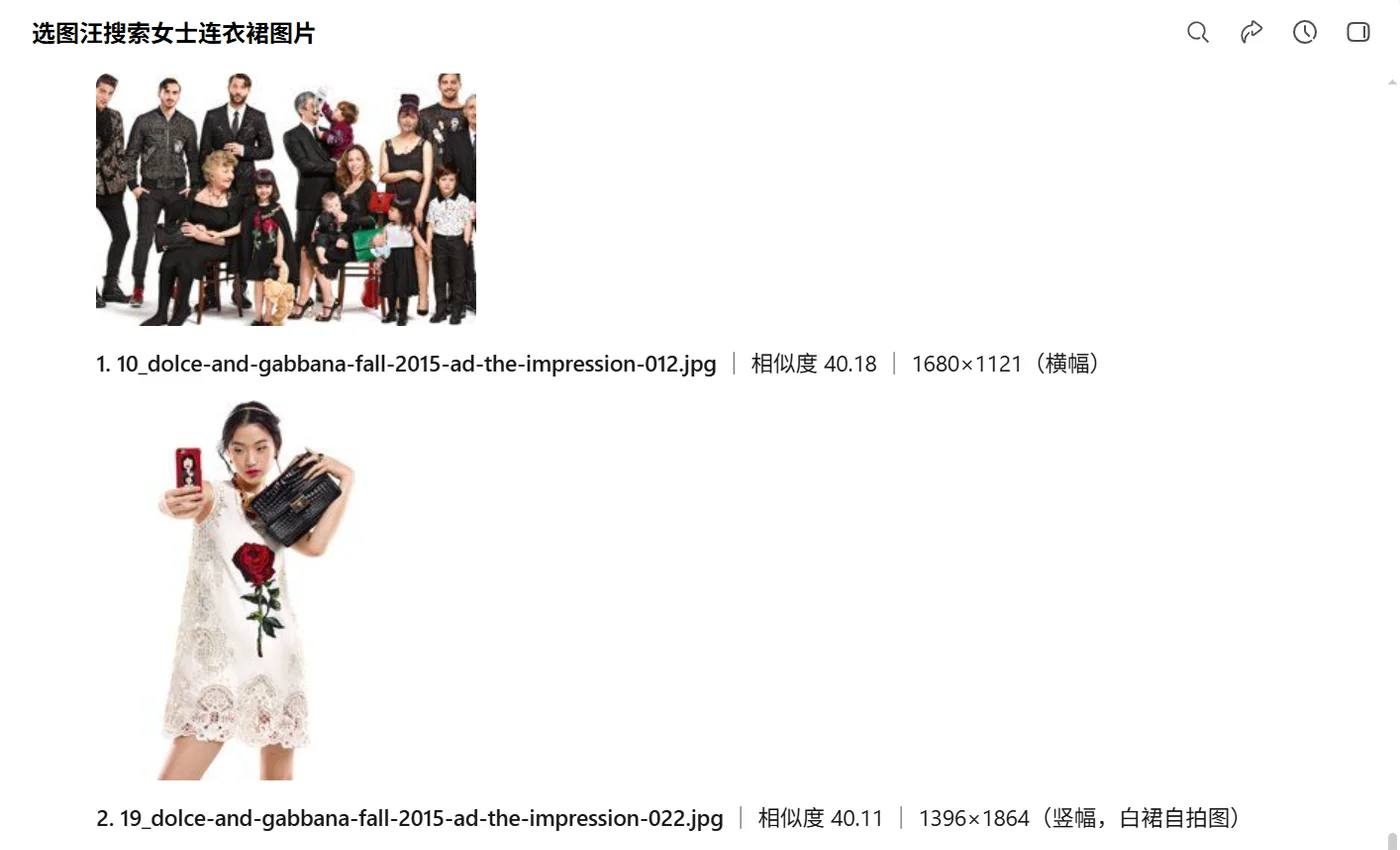
AI assistants are good at conversation, but they cannot see the tens of thousands of product shots, client photos, and design references on your disk. With Assist 3.14 connected to WorkBuddy, you describe the picture you want and the assistant asks Assist on your computer to find it, then shows you the pictures.
Quick Take
Yes. From version 3.14, Assist Local Image Search offers an AI assistant connection, currently for WorkBuddy. Describe a picture or attach a reference image in a WorkBuddy conversation, and the assistant asks Assist on your computer to search the local library and shows the pictures in the chat.
- The search runs in Assist on your computer. The assistant does not build another library and never deletes, moves, or renames original files.
- It supports search by description and four reverse image strategies: global, subject, color, and local keypoints, limited to a folder or a collection if you wish.
- Candidates can be filtered by similarity, width and height, orientation, star rating, color label, or file format, and the same set can be opened in the client.
- File names, paths, thumbnails, and recognized text returned to the assistant enter WorkBuddy’s model service. The switch is off by default and only the user turns it on.
- Supported today: Windows client 3.14 or later with WorkBuddy 5.0 or later.
Why an assistant cannot find your pictures on its own
Your pictures live on your computer or an external drive, usually named with camera numbers or dates. The assistant has never read them and has no index that can be searched by what a picture shows. Ask it for a model wearing a dress and it can only tell you to browse your folders.
Assist builds exactly that index. It analyzes the images in your folders once, and after that you can search by description, reference image, color, person, or text inside images. Connecting it to WorkBuddy hands that search ability to the assistant.
What you can do from the conversation
You talk as usual. The assistant calls Assist and organizes the results for you.
- Search by description: "Find people wearing dresses in my product folder and show the pictures here."
- Find similar images: attach a reference image and choose the global, subject, color, or local keypoints strategy. The reference does not need to be in the library.
- Limit the scope to one folder or one collection.
- Keep filtering: "Keep portrait images at least 1200 pixels wide." Similarity, width and height, orientation, star rating, color label, and file format all work.
- Look elsewhere: "Open these results in Assist." The client shows the same set, where you can add to collections, export, or locate files.
- Read text in a picture: point to one local picture and ask for its text.
Where it fits
- E-commerce and product libraries: a customer sends a reference image in a chat, and the assistant finds the same or similar items in your product folder.
- Photography studios: while writing a proposal or replying to a client, ask the assistant to pull sample photos by description.
- Design and operations: discuss copy with the assistant and let it find matching visuals, then filter by size and orientation.
- Document handling: have the assistant read the text in a scan or screenshot and keep working from there.
Do my pictures leave my computer?
The library and the search stay on your computer. What needs to be clear is this: for the assistant to understand and show results, the file names, paths, thumbnails, and recognized text returned to it enter WorkBuddy’s model service. Chinese descriptions may also use the client translation service.
Allow AI assistant connections is off by default and only you turn it on in Settings. Assist also asks once more on the first connection. Keep it off for a library you do not want an assistant to touch. After connecting, you can revoke access at any time and see when the assistant connected and which functions it called.
The assistant can only search, filter, display, and read text. It never deletes, moves, or renames your original files.
How to start
The AI assistant connection ships with version 3.14 and currently supports the Windows client with WorkBuddy 5.0 or later. A client installed today gets it through the in-app update once 3.14 is released.
Connecting takes three steps: in Assist, open Settings → AI assistant, turn on Allow AI assistant connections, and copy the WorkBuddy configuration. Paste it into a custom connector in WorkBuddy and enable it. On the first search, return to Assist and click Allow connection.
FAQ
Build your library first
Download Assist, add your image folders, and finish indexing. Once 3.14 is released, turn on the AI assistant connection and search from your conversation.