
Migrating an Old Material Library: Move Computers, Migrate the Database, and Re-check Source Paths
For new computers, new drives, or old material libraries, back up the database, migrate the database location, handle missing paths, confirm statistics, refresh source paths, and repair database.db only when damaged.
For new computers, new drives, or old material libraries, back up the database, migrate the database location, handle missing paths, confirm statistics, refresh source paths, and repair database.db only when damaged.
When changing computers or drives, distinguish between the database and the source material folders.
1. Understand Database vs Material
The database folder contains records, thumbnails, search indexes, and database.db. Source folders contain your original images, spreadsheets, PDFs, and videos. Moving only the database may leave visible records with inaccessible originals; moving only the originals requires adding them to a database again.
2. Back Up Before Migration
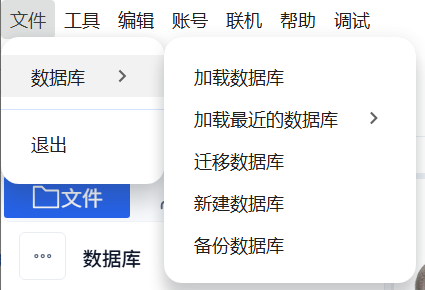
On the old computer, choose File → Database → Back Up Database and select a safe destination. Back Up and Migrate expect a parent folder and use its database child; Load expects the folder directly containing database.db. Back Up copies the database without switching the active one. Back up source material separately: a database backup is not a backup of all original files.
3. Change Location on the Same Computer
Choose File → Database → Migrate Database, select the new location, and wait for completion. Migration copies the database and switches to the new location. Finish refresh, repair, export, and other background tasks first. The destination must be writable and must not already contain a database folder.
4. Load an Existing Database on a New Computer
Copy the database folder to the new computer. Choose File → Database → Load Database, then select the folder containing the existing database.db.
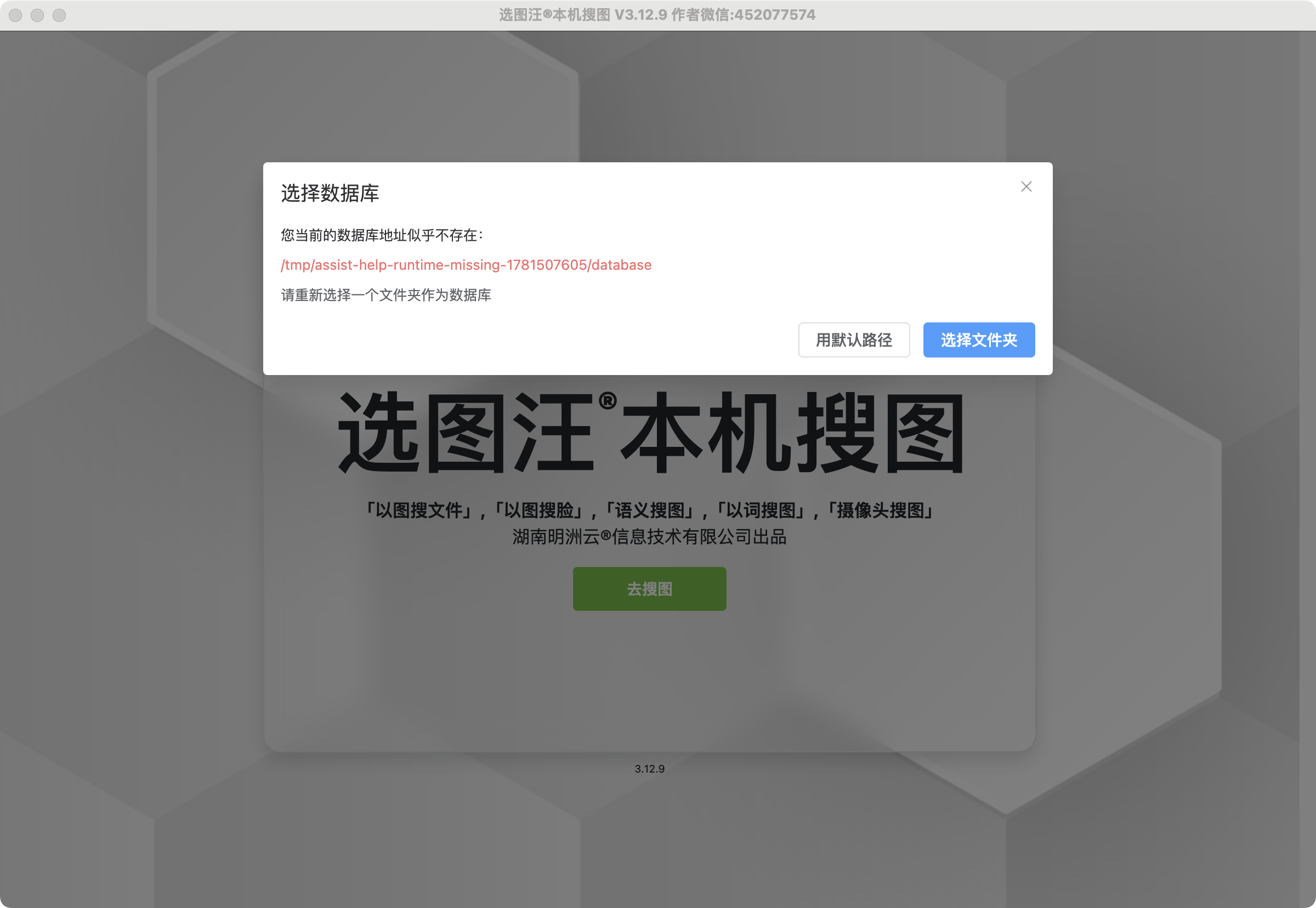
If startup reports that the database location is missing, use Choose Folder to locate the old database. Use the default location only when you intend to start without loading the old library. This chooser is for the database, not a source image folder.
The two entry points expect different directory levels: startup Choose Folder appends database, so select its parent directory. File → Database → Load Database expects the database directory itself, containing database.db. If startup lists usable recent databases, verify the path and click Load directly.
5. Check Statistics
Open Database → Details beside the image count to inspect file, image, face, pose, semantic, and other feature counts. Compare with the old library. Matching counts alone do not prove database integrity: also check original files and try a familiar reference search. If feature counts differ, inspect parsing tasks before deciding whether index repair is needed.

6. Verify Source Paths
Under the Files tab, select old project folders and inspect their recorded paths. Use the system file manager to confirm that originals still exist and open correctly. Sample different folders and file types.
Thumbnails and previews may come from cached data; seeing an image does not prove its original path is accessible. Keep source paths, including drive letters, consistent where possible. Otherwise, add the source folders at their new locations.

7. Refresh After Migration
From the database actions, choose Refresh Database and wait for the task to finish. Check counts, searches, and source access again. Refresh synchronizes file changes; it cannot find an original whose recorded path no longer exists. Restore the original path or add the new source folder first.

8. Repair Only When database.db Is Damaged
If the app reports a damaged database file, keep a backup of the damaged file, then choose Tools → Repair Database File and select database.db. This is a recovery workflow; normal moves use backup, migration, and loading.

Common Cases
- Old paths are missing: restore the paths or add source folders at their new locations.
- Counts exist but thumbnails fail: check source file paths and refresh.
- Database file cannot open: check path, permissions, service state, and logs. Use file repair with a preserved copy only after confirming corruption.