
Group Images by Overall Appearance, Meaning or Color
Prepare image features, choose a clustering mode, adjust groups and export the current grouped images.
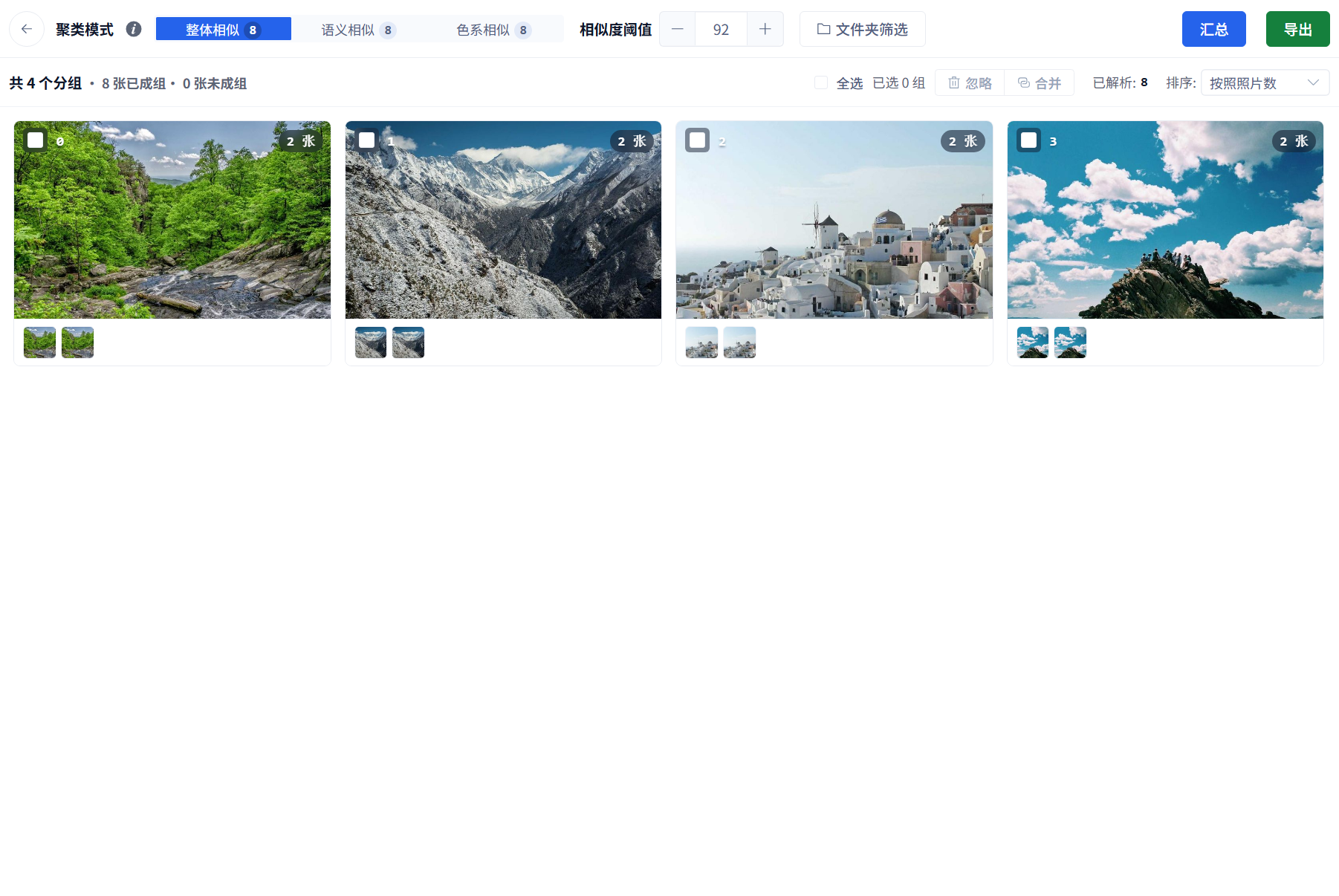
Prepare image features, choose a clustering mode, adjust groups and export the current grouped images.
Image Clustering groups similar images in the current library without a reference image. Use it to organize product series, scenes or palettes. A cluster does not prove duplicate files or the same person; duplicate detection and face clustering serve different purposes.
1. Prepare the matching data
- Overall Similarity needs Global image-search data.
- Semantic Similarity needs semantic parsing data.
- Color Similarity needs Global · Color data and may group different subjects with similar palettes.
Finish parsing a small sample first. The count beside each mode helps indicate available feature data; ordinary image counts do not establish that a particular mode is ready.
2. Open Image Clustering and choose a scope
Choose More → Image Clustering in the workspace. Select a mode and use Folder Filter for a project scope. Without a folder restriction, the current database is used.
Changing mode or folder scope clears the current results. Choose conditions before manually organizing groups.
3. Set the threshold and summarize
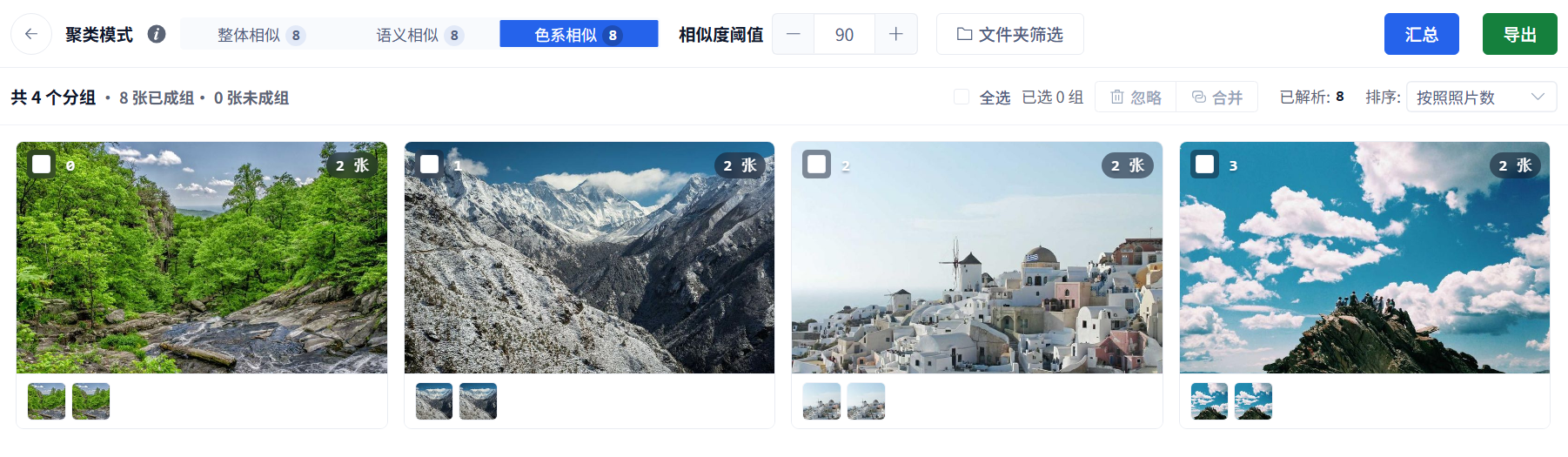
The similarity threshold ranges from 1 to 100. Start with the mode default. Increase it for groups that are too mixed; lower it if useful matches are too fragmented. Thresholds from different modes are not directly interchangeable.
Click Summarize and wait for completion. Summarizing again replaces the current results and manual group adjustments, so export important work first.
The example contains four landscape photos and one identical backup of each. At the default threshold, the eight files form four groups. This illustrates the workflow; other collections can produce different groups.
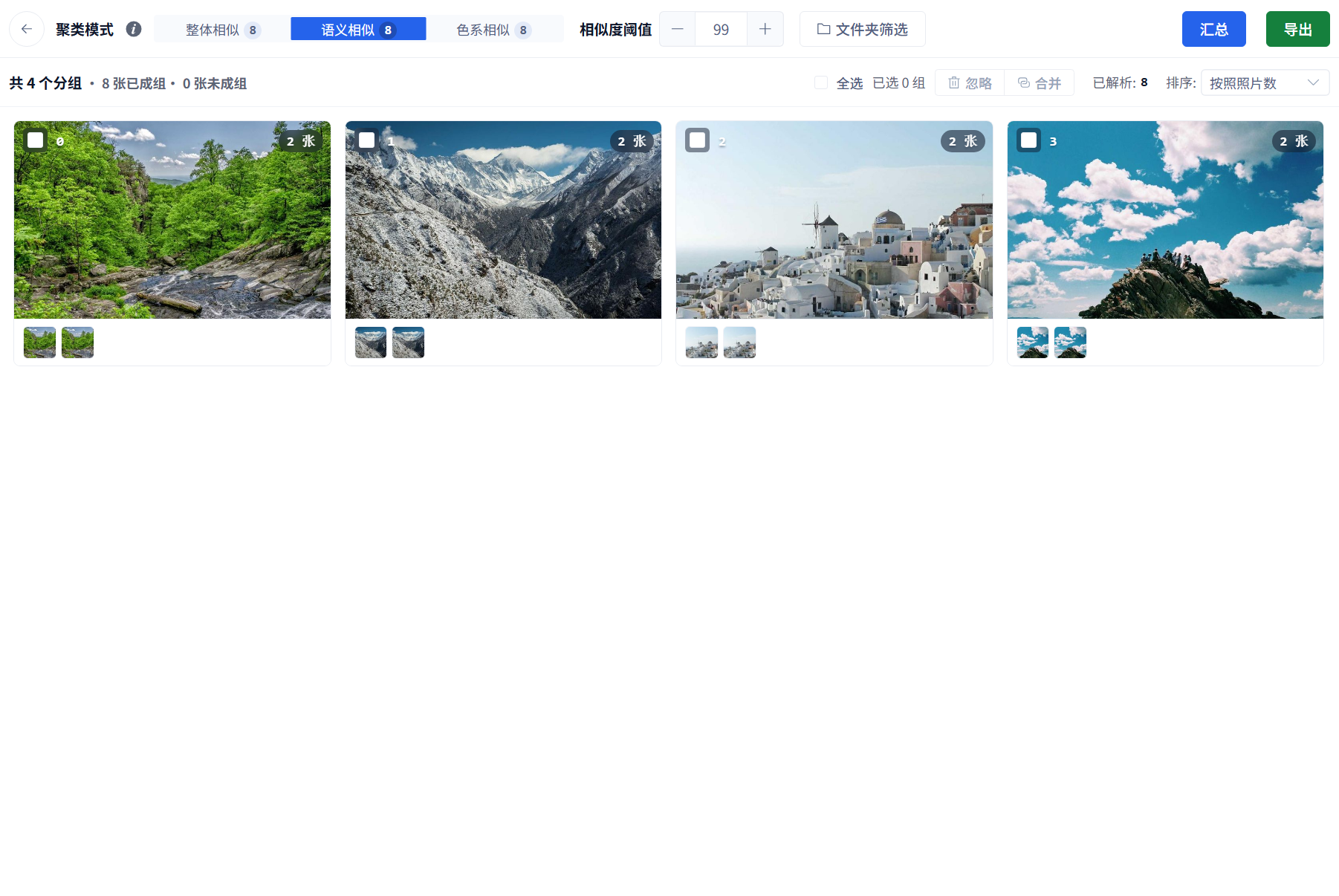
4. Review groups and ungrouped images
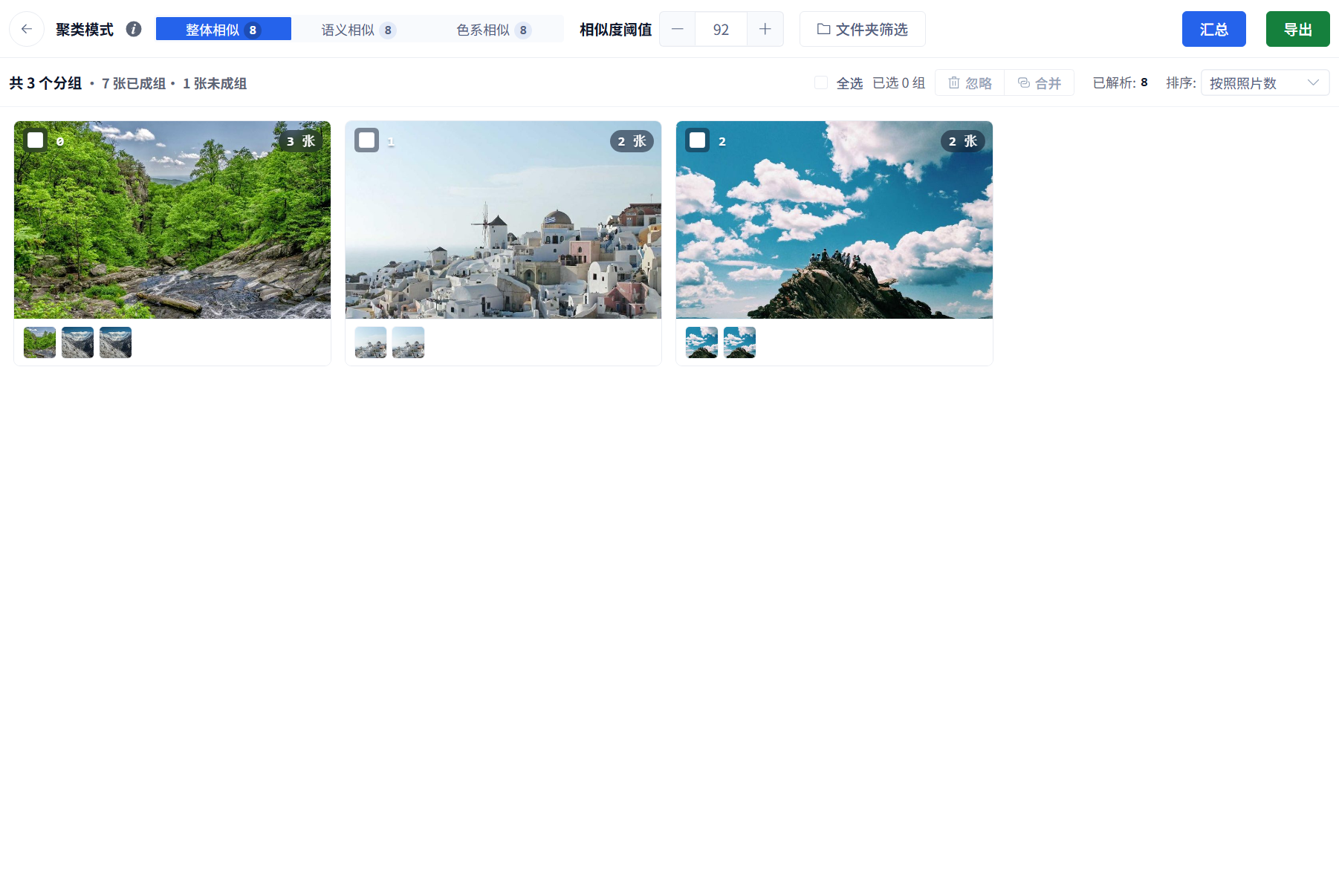
The page shows group count, grouped images, ungrouped images and parsed images. Groups can be ordered by photo count. Open a group to review its images, paths and suitability.
Ungrouped does not mean parsing failed. Images with data but absent from current groups also count here; ignoring groups changes the current total. These counts do not prove complete parsing.
5. Adjust the groups
- Ignore removes selected groups from the current clustering results without deleting original images.
- Merge combines at least two selected groups.
- Split Selected Images in a group's image-drawer actions creates another group from a partial selection. Leave at least one image in the original group.
These edits belong to the current page results. Changing mode or scope, or summarizing again, resets them. Export the organization before leaving. Image removal and source-file deletion in the drawer are separate actions: read their confirmation before applying them.
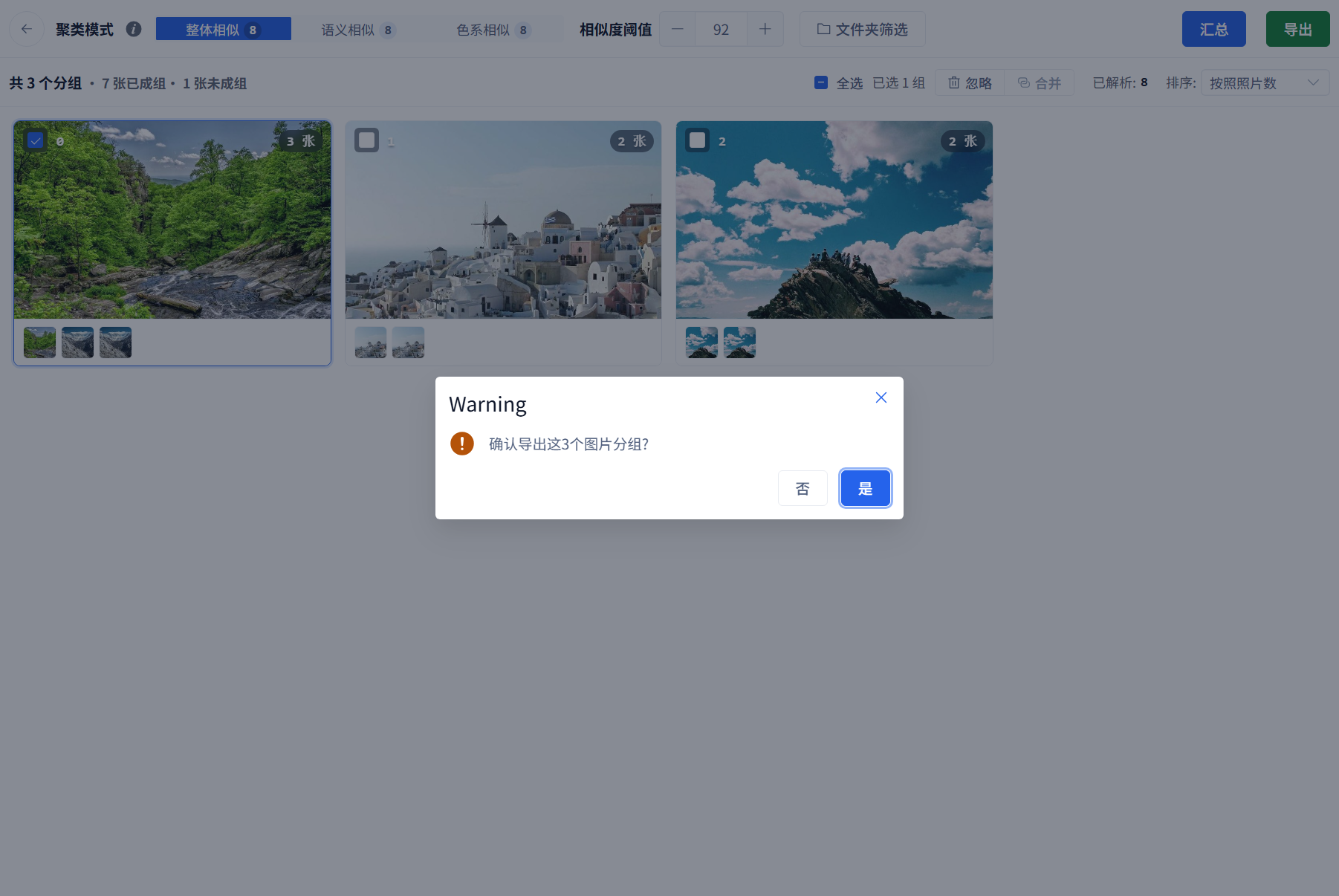
In this example, two groups were merged, one image was split out, and that single-image group was ignored. The page then shows three groups, seven grouped images and one ungrouped image.
6. Export all current groups
Click Export, confirm the group count and choose a destination. Export covers every group in the current results, not only checked groups. Ignore unwanted groups first.
Subfolders use the mode name and a number, not automatically recognized product or person names. RAW export copies originals. Keep source files accessible and allow enough destination space.
Inspect success and failure counts, error details and destination contents. A created folder alone does not prove that all images were copied.
The screenshot below has one checked group, but the confirmation still covers all three current groups. Check this count before continuing.
Troubleshooting
- Mode unavailable: complete the corresponding feature parsing.
- No groups: check database, folder scope and feature data before reducing the threshold.
- Mixed content: raise the threshold or choose a mode better suited to the task.
- Merge disabled: select at least two groups.
- Split disabled: select part of a group and leave images in the original group.
- Manual changes disappeared: condition changes or another summary reset current results; export before resetting.
- Export failures: inspect the report, source access, destination permission and free space.